Lesson 5: Water Conservation App - Interactive
📚 Previous Lesson
Coming from Lesson 4: Mad Libs Game? Great! Now you’ll make your Water Conservation App interactive by adding JavaScript functionality.
🎯 Learning Objectives
- Update your Week 4 Water Conservation App HTML wireframe to be interactive
- Add JavaScript event handling to existing Bootstrap components
- Practice DOM manipulation with helper functions
🚀 Project Overview
Update your existing Week 4 Water Conservation App to make it interactive. You’ll add JavaScript functionality to the HTML wireframe you already created.
Reference: If you need to review how the Water Conservation App HTML was built, see Week 4: Bootstrap Layouts and Grid System.
🛠️ Setup
Step 1: Open Your Project in VSCode
- Open VSCode
- Go to
File → Open Folder
- Navigate to your
water-conservation-app project folder
- Click
Select Folder
Step 2: Download Helper Functions
- Download Helper Functions - Pre-built functions for common tasks
- Save the file as
helpers.js in your project folder
- Important: Keep the filename exactly as
helpers.js
Step 3: Add Helper Functions to HTML
Add this line to your HTML file, just before the closing </body> tag:
<script src="helpers.js"></script>
Step 4: Create Your JavaScript File
Create a script.js file in your project and include it under helpers.js in your html file.
- In VSCode, right-click in the file explorer
- Select
New File
- Name it
script.js
- Add this line to your HTML file, after the helpers.js script:
<script src="script.js"></script>
Step 5: Learn About Helper Functions
For detailed information about available helper functions, see Helper Functions Guide.
Repeat for each html file
You should create a new JavaScript file for each of the html files you have.
Include the helpers.js and your new script file in each page.
For example, for water-bottle-screen.html, you could have a script called water-bottle-screen.js. For shower-screen.html, you could have a script called shower-screen.js.
🌊 Interactive Features to Add
Based on the Week 4 Water Conservation App screenshots, add these interactive features:
Original App on Code.org
Review the original app on code.org.
Screen 1 (Home/Language)
- Language Toggle: Switch between English and Spanish
- Navigation: Button to proceed to bottle selection screen
- Multilingual Content: Title and body text in both languages
Screen 2 (Bottle Selection)
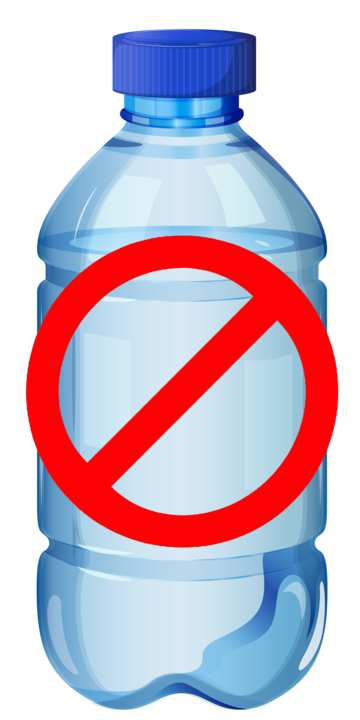
- Bottle Choice: Click good vs. bad bottle with visual feedback
- Feedback System: Success/error messages with sound effects
- Cross Overlay: Visual indicator for wrong bottle choice
- Bonus Challenge: Faucet Interaction: Fill bottle after correct selection (This is quite hard to do with bootstrap. You may skip the bottle movement and filling.)
Screen 3 (Shower Timer)
- Image Toggle: Timer click swaps shower before/after images
- Visual Feedback: Artwork changes based on user interaction
- Navigation: Return to home screen
Implementation Tips
- Start with Bootstrap: Use your existing Week 4 knowledge and Bootstrap components
- Focus on Screens: Work on one screen at a time (Screen 1 → Screen 2 → Screen 3) Note: Each “screen” is it’s own page. Different from code.org, the screens cannot share state. All variables will be reset after each navigation.
- State Management: Track language, bottle selection, and shower state within the page.
- Event Handling: Add click events for buttons, images, and interactions
- Visual Feedback: Use overlays, image swaps, and Bootstrap classes
- Test Incrementally: Check each feature as you build it
- Refer to Code.org: Use the lessons for JavaScript implementation details
🔗 Additional Resources
🖼️ Assets
Week 5 Images
📚 Next Lesson
Ready to build the Mad Libs game? Continue to Lesson 6: Mad Libs Game - Interactive to make your HTML wireframe interactive!
🏆 Bonus Challenge
Multiple Bottle Saves
On Screen 2, enhance the bottle selection to allow users to click the good bottle multiple times and track their conservation impact:
- Bottle Counter: Add a counter that increments each time the good bottle is clicked
- Multiple Saves: Allow users to “save” multiple bottles by clicking repeatedly
- Visual Feedback: Show the current count of bottles saved
- Conservation Impact: Display environmental impact based on bottles saved
Implementation Ideas
- Track bottle count in app state
- Update counter display after each good bottle click
- Consider adding animation or visual feedback for multiple saves
- Show cumulative environmental impact (e.g., “You’ve saved X plastic bottles!”)
This challenge adds replayability and helps users understand the cumulative impact of their conservation choices.